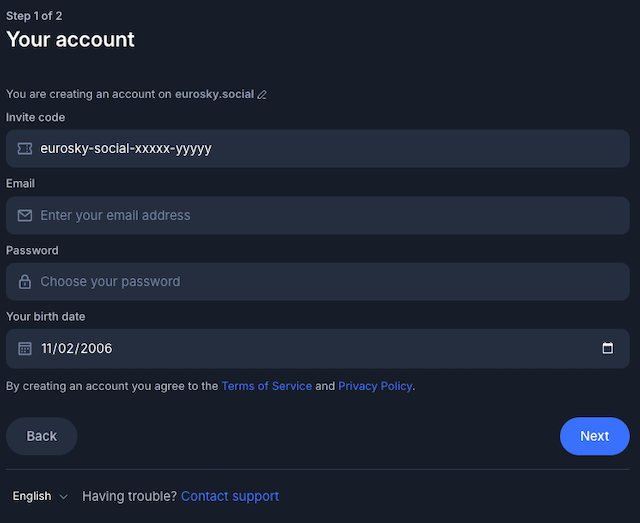
Moving your Bluesky/ATProto account to Eurosky
1 Go to PDS MOOver
2 Enter your existing account details
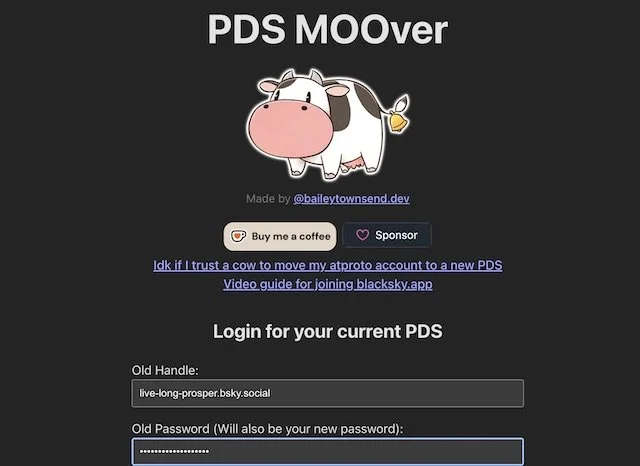
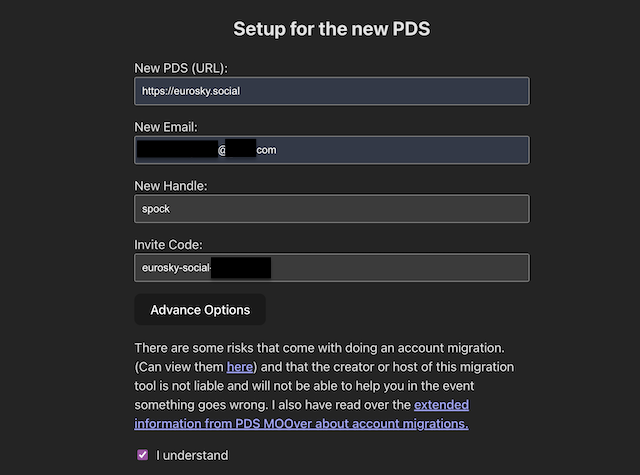
3 Enter your new account details, then press the MOOve button at the bottom. After pressing the button stay on the page until migration completes.
There is additional information on the process and risks, linked from the page.
4 You will receive an email from Bluesky with a code
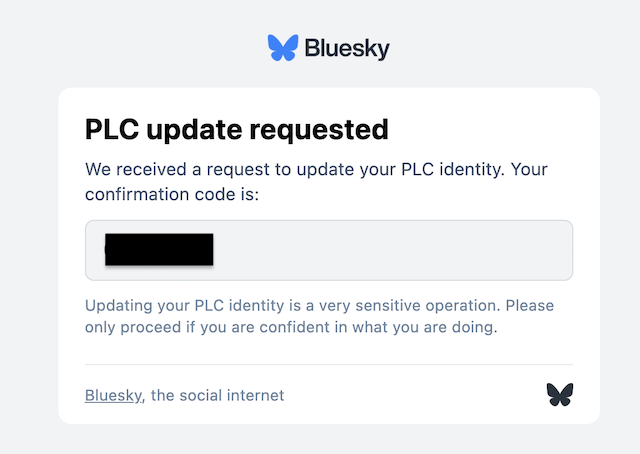
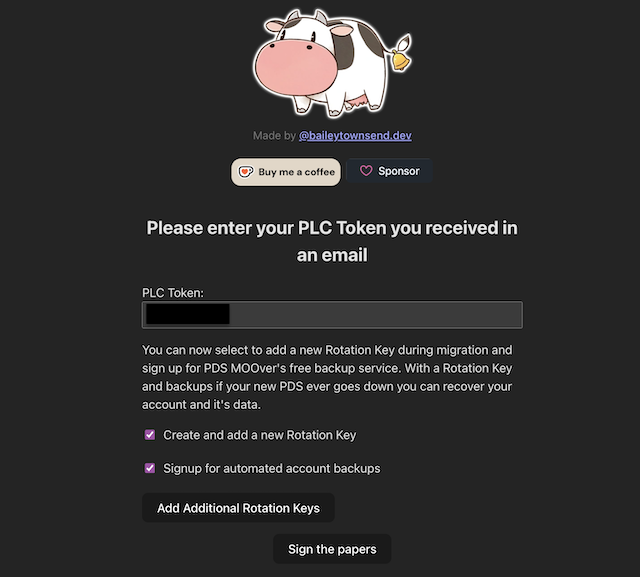
5 Return to PDS MOOver and add the code you received from Bluesky in the PLC token field. We recommend creating and adding a new Rotation Key as well as signing up for automated account backups. When done, click the ‘Sign the papers’ button.
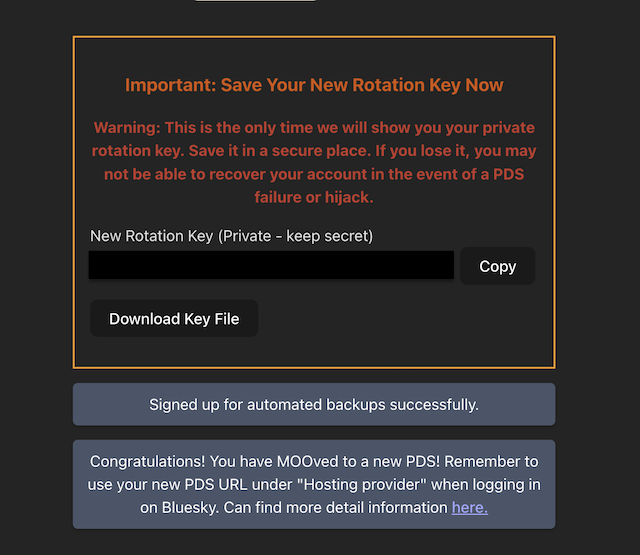
6 Save your new Rotation Key
7 Congratulations, you have moved your account to Eurosky! Now log back in using Bluesky or any other client you use. The example shown below is for the Bluesky app. Assuming you were logged in you will find these options. Click Cancel.
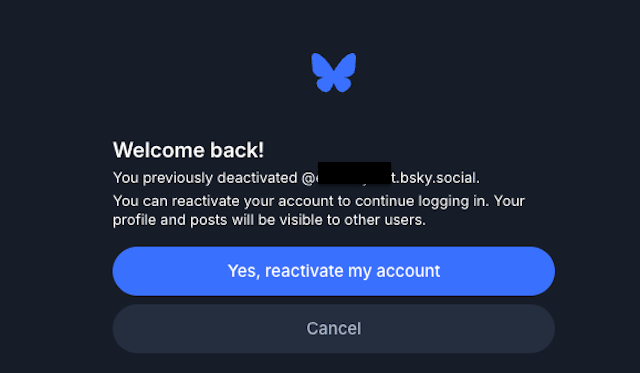
8 You will see this. Click sign in. On the next page click your account (it will show as logged out)

9 On the next page, click on the edit button in the ‘Hosting provider’ field.
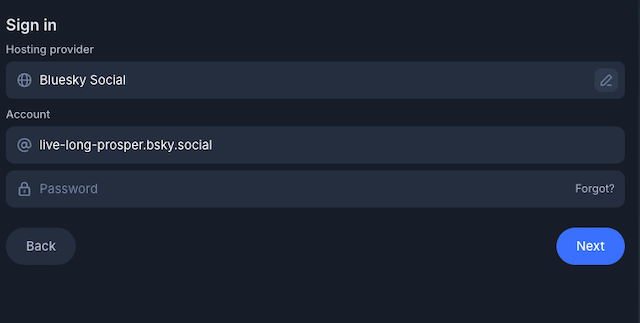
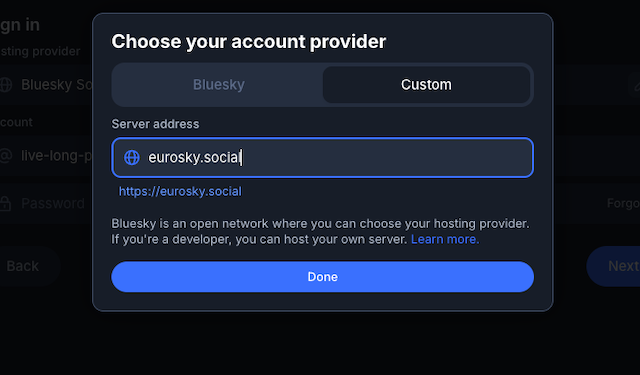
10 A popup will appear to select your account provider, select ‘custom’ and type eurosky.social and press done.
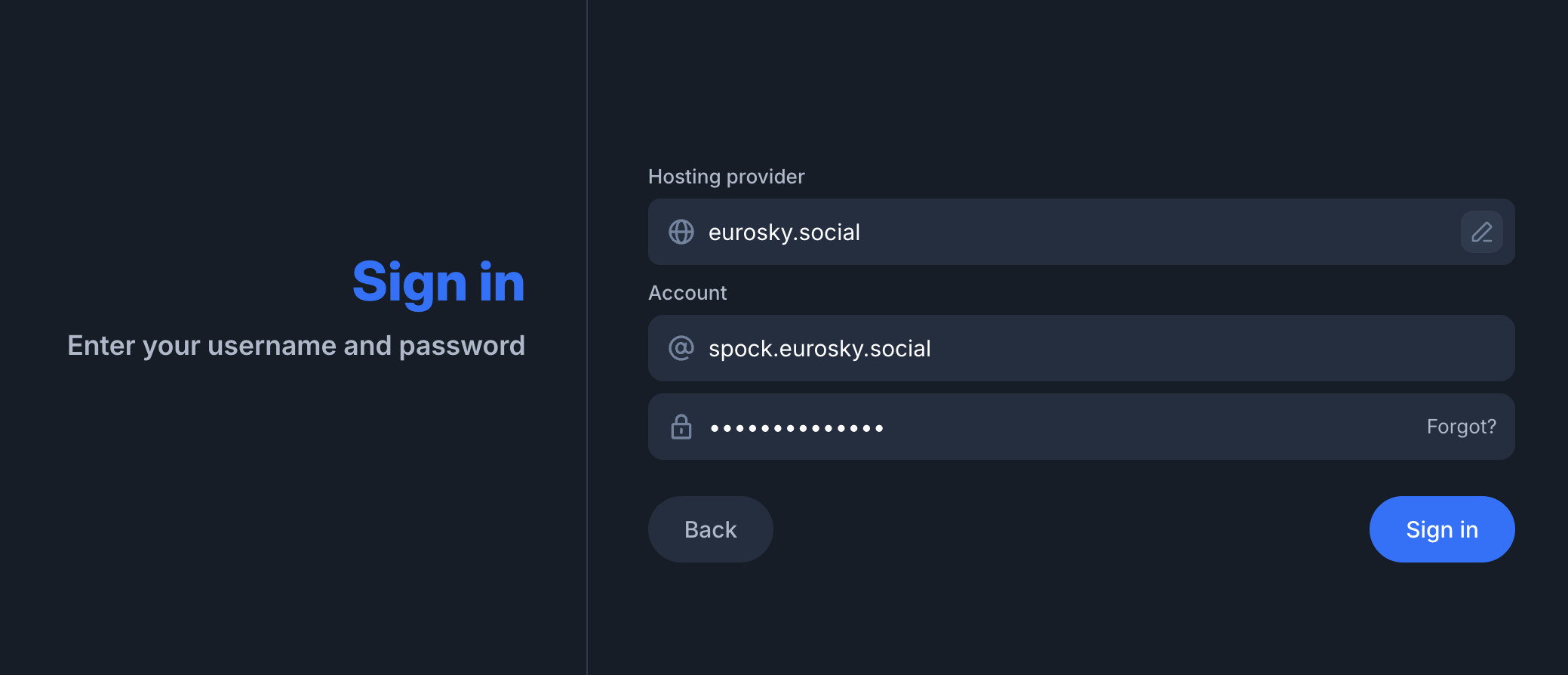
11 type your eurosky account name and password, then click next! You’re done! Remember that when you need to sign in to Bluesky again, you need to select the custom provider option.

Instructions for creating a new account

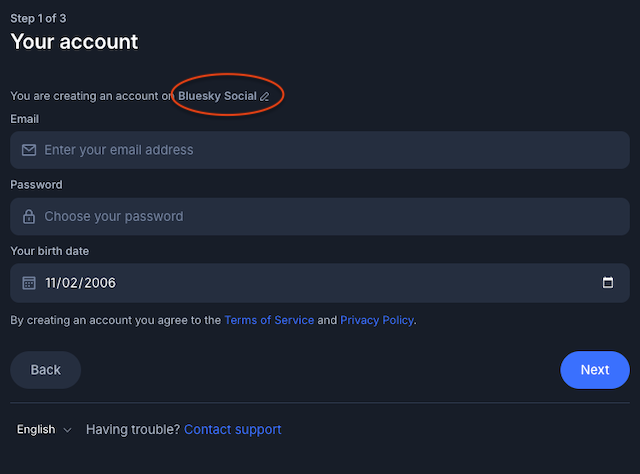
2 Click on the bit highlighted in red.
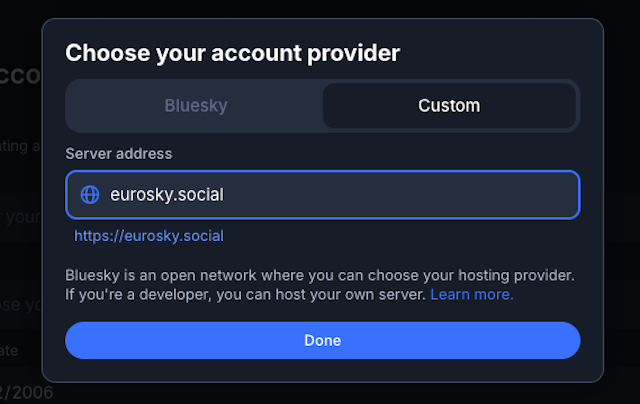
3 Click on custom and type eurosky.social in the server address field.
4 Enter your activation code and other details, press next, et voila!